Updated
The Hilead extension can read a LinkedIn profile and request contact enrichment when an email address or phone number is needed. Results depend on the available data: a profile does not guarantee a matching contact field, and verification cannot guarantee delivery. This tutorial covers the review, credit cost and audience handoff for a single prospect.
Check the profile before requesting contact details
A profile match, a saved contact and a successful lookup are separate checks.
| Situation | Next action | Check before continuing |
|---|---|---|
| The role and company match your target | Open the extension and review the profile card | Current employer and the person's responsibilities |
| You need an email address or phone number | Sign in and select the required lookup | Credit balance and the field requested |
| The lookup has no result | Keep the field missing and review another research route | Do not invent an address or treat a missing result as a verified contact |
- 1
Navigate to your prospect's LinkedIn profile
Open the prospect’s LinkedIn profile and confirm their current company and role. Check any signal used to prioritize the account against its original source. A similar name or an old job title is not enough to establish that you have the right buyer.
- 2
Launch the Hilead extension
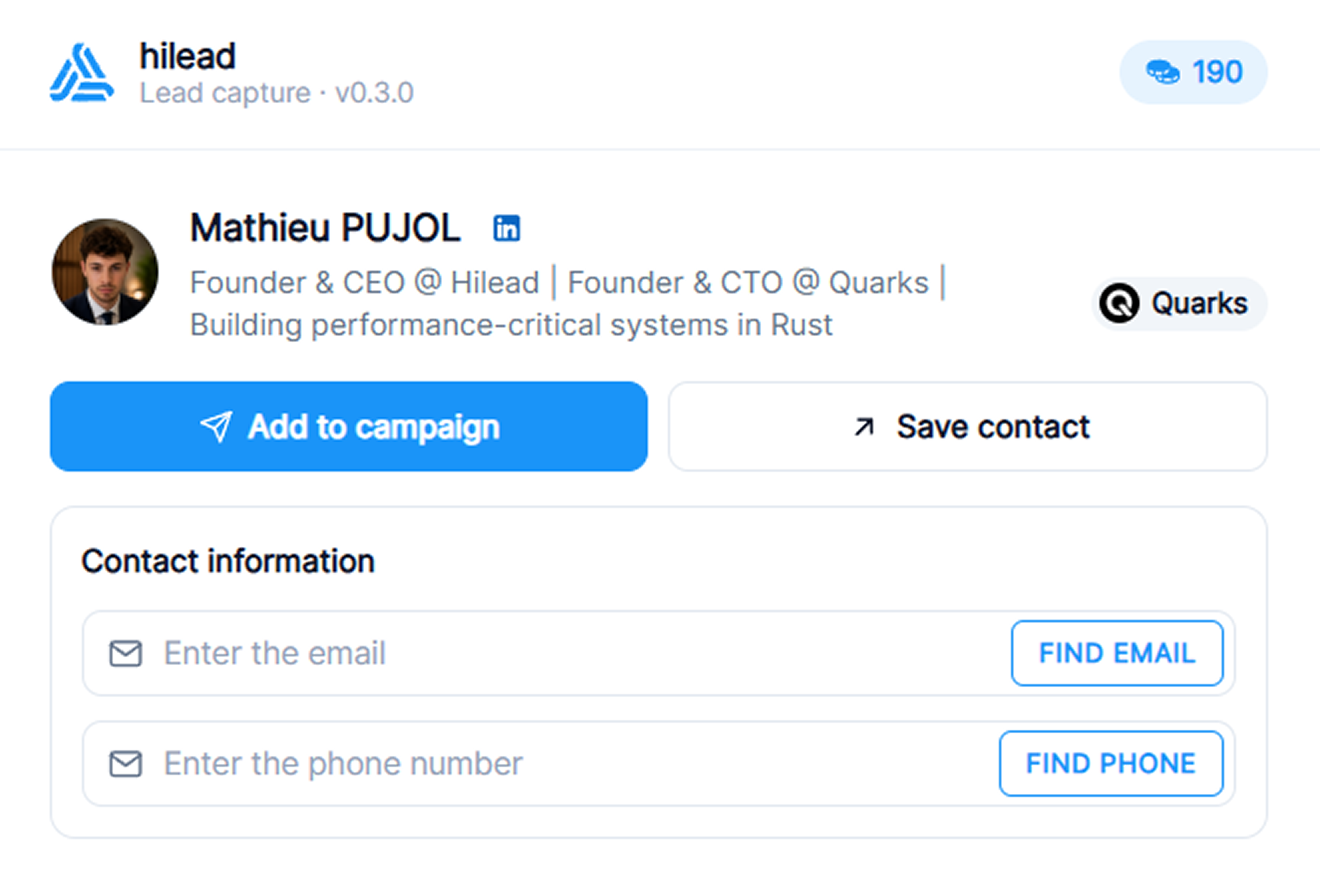
Install the Hilead extension in Chrome on a computer, open the person's LinkedIn profile and click the extension icon. Review the profile card against the page: name, role and current company must identify the person you intended. Sign in to Hilead for contact lookup and audience actions. If you opened a search-results page instead, use the search export tutorial.
- 3
Click "Find email" or "Find phone" to start the search
You'll see two action buttons: "Find email" and "Find phone number". Click one or both depending on what you need. A work email starts at 1 credit (3 for a personal fallback) and a phone number costs 10 credits. When you click, Hilead runs its enrichment cascade, it queries multiple verified data sources, cross-references the results, and runs a real-time deliverability check on the email to assess its deliverability; verification cannot guarantee delivery. Enrichment usually completes in a few moments; some searches can take longer while Hilead checks multiple providers. If no verified data is found, you're automatically refunded, you only pay for successful lookups.
- 4
Review and copy the verified contact details
Review the returned contact fields and confirm they match the intended buyer. If a lookup returns no result, record that outcome rather than guessing an address. Previously saved details may already be visible when you reopen the lead; review the interface before requesting another enrichment and remember that stored contact details can become stale.
- 5
Add the lead to an audience
Save the reviewed profile to the intended audience. Check the campaigns linked to that audience first, because a new audience member can become eligible for outreach. You can also copy a returned email into your existing workflow after checking channel eligibility. Keep the original research evidence alongside the contact so the next person can understand why it was selected.
- 6
Compare the workflow before choosing a tool
For browser phone lookups, use the Mr. E extension comparison. For credits, CRM and bulk requirements, use the EasyLeadz platform comparison. Teams handing contacts into an established CRM and sequencer can also evaluate the LeadIQ alternatives guide.
Frequently asked questions
Can Hilead always find an email or phone number from a LinkedIn profile?
No. The profile supplies an identity to research, but a matching contact field may be unavailable. Review each result and keep unsuccessful lookups visible; do not infer an address from a name or company pattern.
What should I check when the profile card looks wrong?
Confirm that the active tab is the intended person's LinkedIn profile, then compare the name, role and company with the card before requesting enrichment. If the identity still differs, stop and use the Help Center rather than spending credits on the wrong person.
Should I look up both an email and a phone number?
Request only the field your next step requires. Work email starts at one credit, personal email costs three and phone lookup costs ten. Check the current pricing and available balance before requesting either field.
How do I work with several LinkedIn profiles?
Use a LinkedIn people search and the extension's Search import panel. The search tutorial explains free CSV capture, selected-profile audience imports of up to 50 at a time, and optional enrichment.
Want to try it yourself?
Install in Chrome, open a profile you have qualified, and review the contact lookup options. An account and credits are required for enrichment.
Get the Hilead extension