Updated
Use the Hilead Chrome extension to select LinkedIn profiles, export the visible selection to CSV for free, or save and enrich contacts in an audience. Selected-profile imports are limited to 50 at a time; Top of search can request up to 500, subject to account limits and available results. This guide separates capture, paid contact lookup and campaign handoff so you can review the cost before confirming.
Choose your LinkedIn export workflow
The free CSV contains visible profile information. Email and phone lookup are separate, credit-based actions.
| What you need | Action | What to expect |
|---|---|---|
| A spreadsheet of profiles you selected | Download CSV | No Hilead account required; name, job title, headline, location and LinkedIn URL |
| Selected profiles in a Hilead audience | Sign in and choose an audience | Up to 50 selected profiles per import; review linked campaigns first |
| Email addresses or phone numbers | Enable only the enrichment fields you need | Credit estimate shown before import; coverage varies |
- 1
Define your ideal prospect with LinkedIn filters
Open a LinkedIn people search and use the filters available to your account to narrow down the current company, role and location. Sales Navigator offers additional filters. Start with a small set you can review manually. Verify that each person matches the ICP and signal evidence for your play before spending enrichment credits.
- 2
Open the Hilead extension on the search results
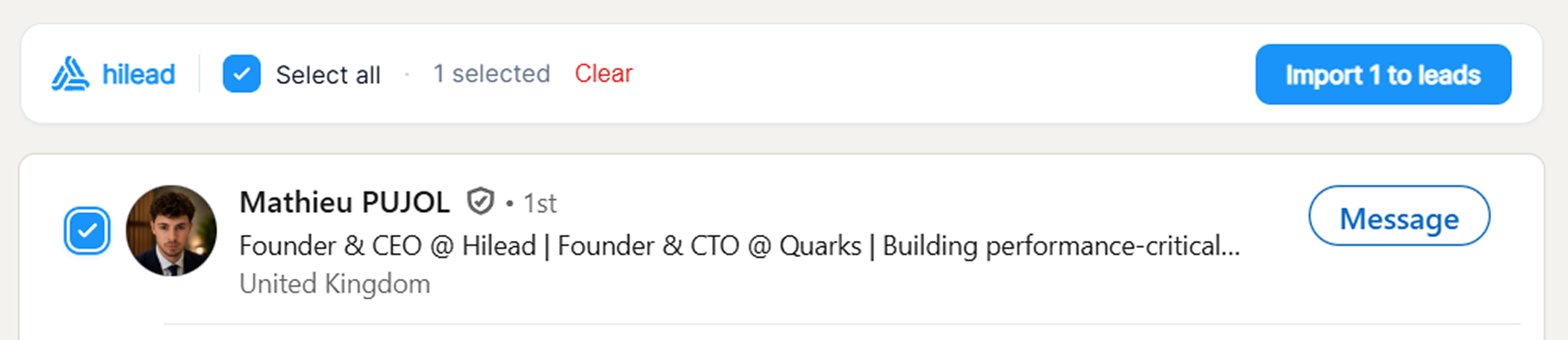
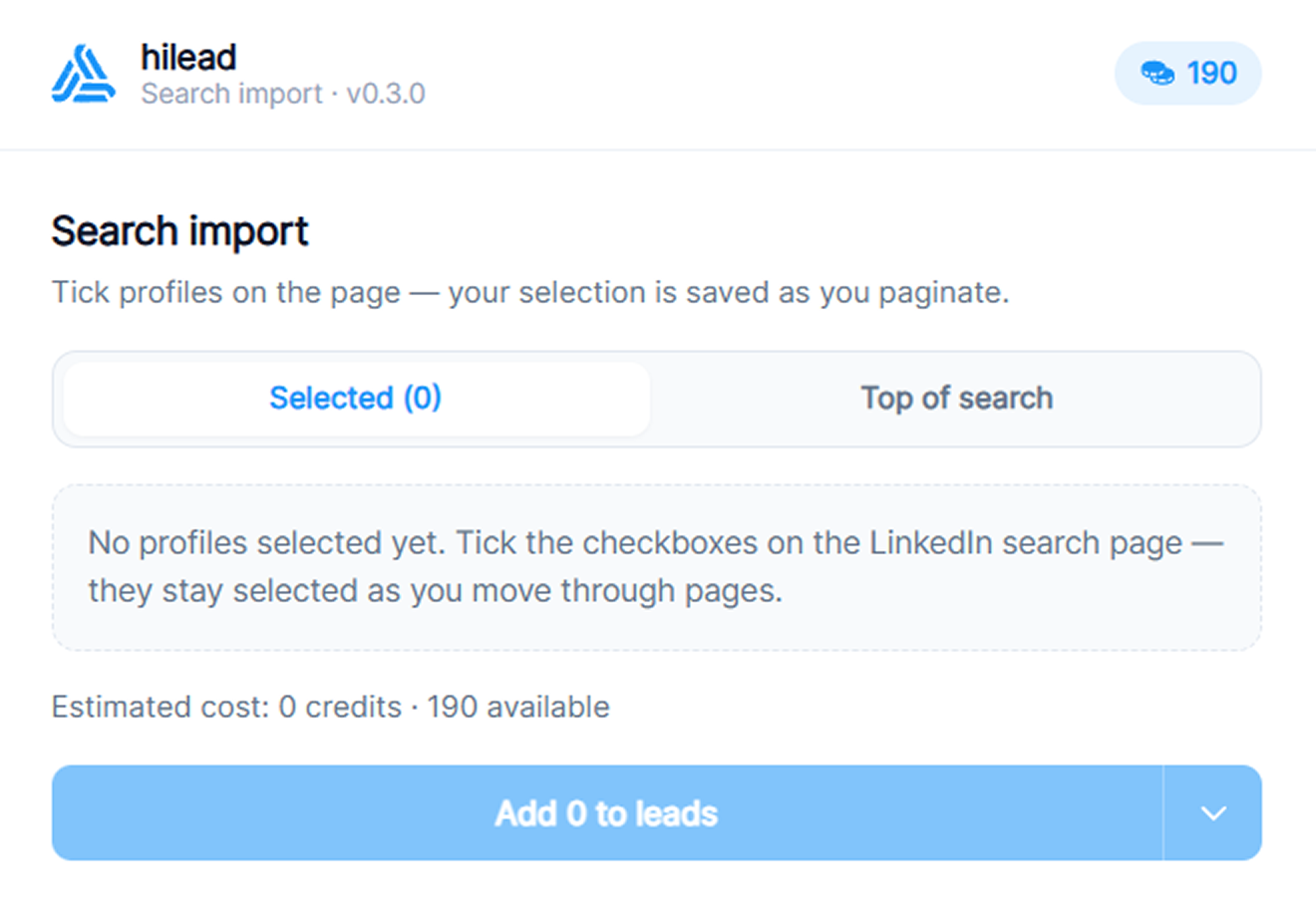
Open the Hilead extension on the search page and select the profiles you want. Review their visible names, roles and companies in the Search import panel. Your selection can persist while you navigate pages manually. Import up to 50 selected profiles at a time; free CSV export supports the manual selection. This step captures profile information and does not by itself guarantee an email address or phone number.
- 3
Download a CSV or choose an audience import
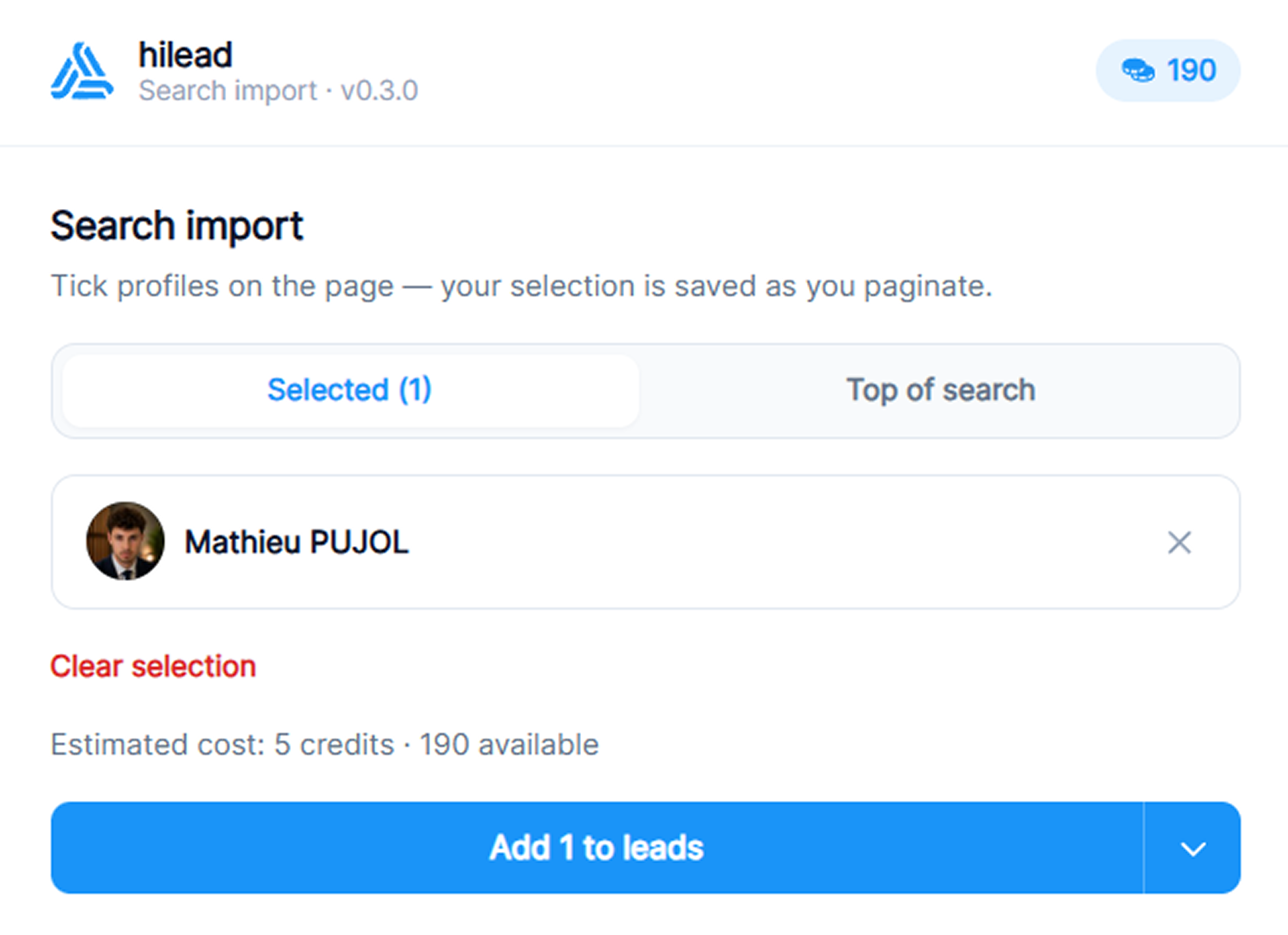
If you only need the spreadsheet, choose Download CSV and stop here. The file contains name, job_title, headline, location and linkedin_url; it does not contain enriched email addresses or phone numbers. Missing visible fields stay blank. To save contacts in Hilead instead, sign in and select an audience. Keep the destination separate from any live campaign you are not ready to run.
- 4
Review optional enrichment before importing
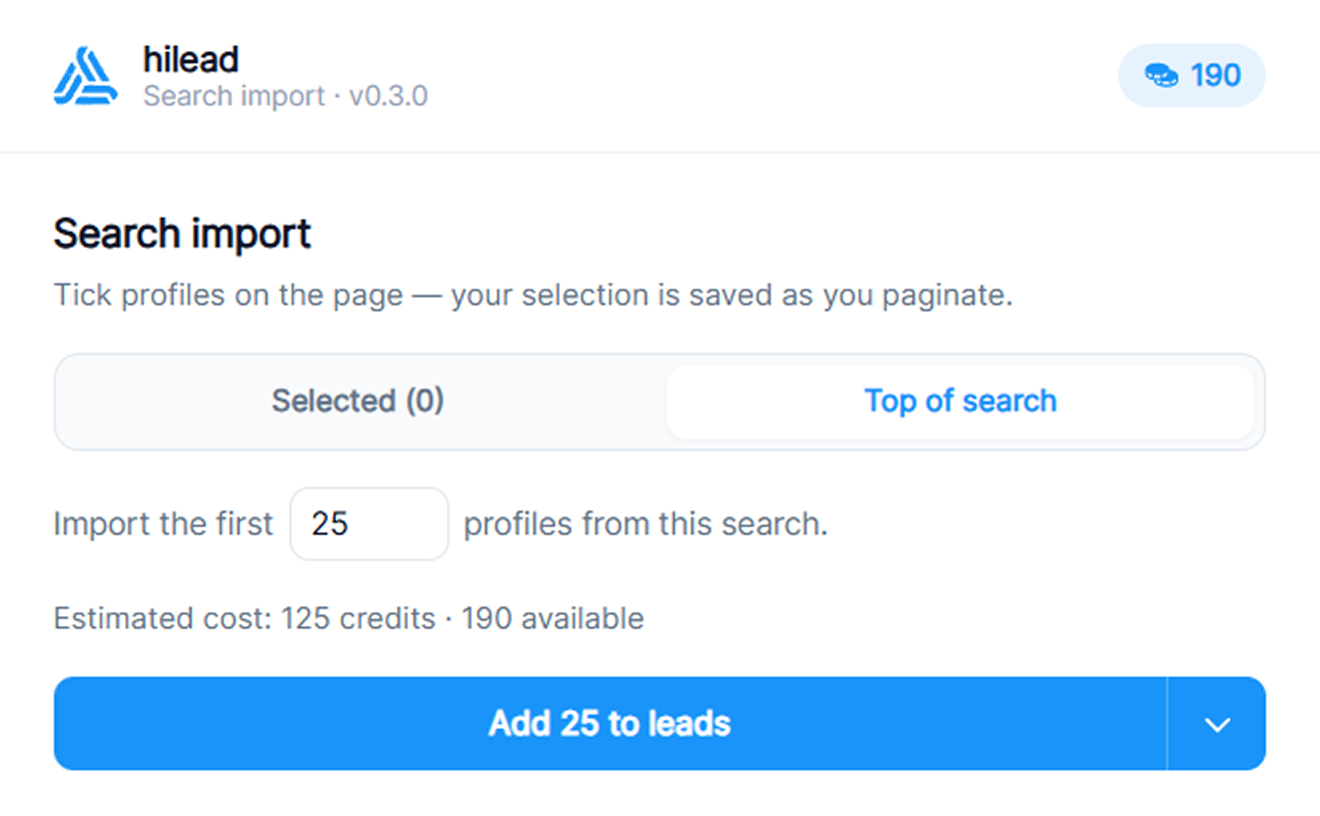
Choose only the contact fields you need and read Maximum cost in the panel. Work email starts at one credit, personal email costs three and phone lookup costs ten; check current credit costs. For a planning example, reviewing 12 profiles and retaining nine gives a nine-row selection; nine successful work-email lookups at the starting rate use nine credits, while nine phone lookups use 90. This is a calculation, not a measured test. Top of search is a separate mode that can request up to 500 results, subject to account limits and availability. The screenshot illustrates that mode; it does not describe the free CSV action.
- 5
Check the imported records and missing results
Review the import summary and destination audience. A saved profile and a returned contact field are different outcomes. If the credit balance runs out, the panel warns that profiles can still be imported while enrichment stops; inspect which fields were actually returned. Lookups without a usable result are refunded. Verify the identity and freshness of returned details before use. Working from one profile? Follow the profile enrichment tutorial.
- 6
Compare the workflow before choosing a tool
For HubSpot capture, read the Hublead alternatives guide; for CRM import options, the LinkPort comparison; for finding emails and managing outreach, the LeadLeaper comparison. Choose based on the handoff your team actually needs.
Frequently asked questions
Can I export a LinkedIn search without a Hilead account?
Yes. With the Hilead extension installed in Chrome, select profiles on a LinkedIn people-search page and choose Download CSV. This exports visible profile fields; contact enrichment and saving to a Hilead audience require an account.
Why are there no emails or phone numbers in my free CSV?
The free search-selection export contains name, job_title, headline, location and linkedin_url. It does not run contact enrichment or export enriched contact fields. Blank visible fields remain blank.
Why is the selected-profile import unavailable?
Check that at least one profile is selected and that the selection does not exceed 50 for an audience import. The panel also disables a new import while another submission is working. CSV export remains available for a selection above 50.
Does exporting a search automatically contact the people in it?
A free CSV download does not send messages. Adding profiles to an audience can make them eligible for campaigns already linked to that audience, so check the destination before importing.
Want to try it yourself?
Install the extension in Chrome on a computer, then use your own LinkedIn people search. Free CSV export is separate from account-based enrichment.
Get the Hilead extension